
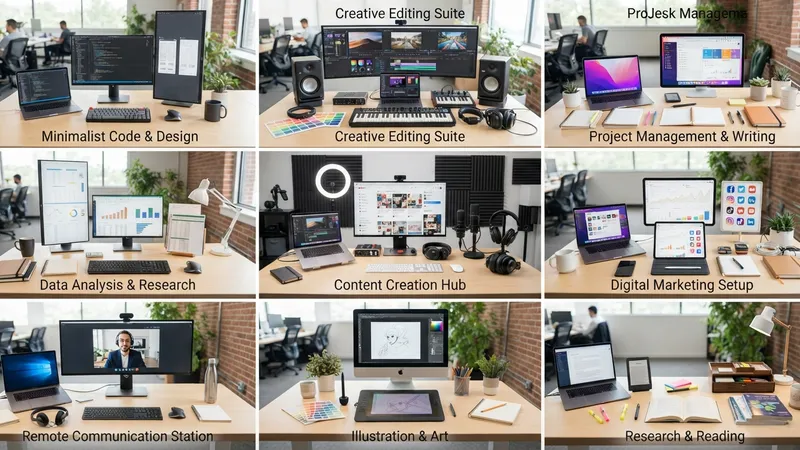
A Divi 5 Workspace is a saved snapshot of your Visual Builder configuration — which panels are open, where they're docked, how big they are, and roughly twenty builder preferences. Recall it in one click or through the Command Center.
The critical boundary: a workspace never touches the page. Modules, rows, sections, presets and layout are untouched. It changes what the builder looks like, not what the site looks like.
TL;DR: Click the Workspaces icon in the left sidebar. Arrange your panels, configure Workspace Settings, then Save as New Workspace and optionally Set as Default. Three categories: Website Workspaces (including shared Global), Your Workspaces (per user account), and two premade — Power User and Minimalist. Control everything with Cmd+K / Ctrl+K.
What Actually Gets Saved
Interface layout:
- Open and closed state of every panel
- Docking location of each panel
- Floating vs sidebar-attached state
- Panel size and position
- Sidebar width
- Tabbed panel groupings
- The active view — Wireframe, or a specific responsive breakpoint
Workspace Settings:
| Setting | Options |
|---|---|
| Interface Mode | Light or Dark |
| Color Scheme | Blue, Purple, Green, Red, Orange |
| Enable Admin Bar | On / off |
| Page Bar Icons | Undo, redo, history, import/export, clear layout, add to library |
| Builder Default View Mode | Desktop, tablet, phone, Wireframe |
| History State Interval | Every action, or every 10th / 20th / 30th / 40th |
| Settings Modal Default Position | Left sidebar, right sidebar, floating over canvas |
| Page Creation Flow | Give Me A Choice, Build From Scratch, Load Premade Layout, Build With AI |
| Show Disabled Modules At 50% Opacity | On / off |
| Group Settings Into Closed Toggles | On / off |
| Add Placeholder Content To New Modules | On / off |
| Speed Up The Builder With Prerendering | On / off |
| Show Theme Builder Layouts | On / off |
History State Interval is the sleeper setting in that list. Setting it to every 20th action rather than every action makes the builder noticeably lighter on a big page, at the cost of coarser undo. On a page with sixty modules that's a real trade worth making deliberately.
The Three Categories
Website Workspaces — site-level. Contains Global, the shared baseline shown to any user who hasn't picked a personal one. Useful as a common reference for documentation and screenshots, because everyone sees the same builder.
Your Workspaces — tied to your individual WordPress user account. Your choices don't alter anyone else's builder. This is where most of your workspaces will live.
Premade Workspaces — Power User and Minimalist ship with Divi 5. Treat both as starting points: load one, modify it, save it as your own.
Creating One
- Open a page in the Visual Builder. It loads your default — Global if you haven't set one.
- Arrange your panels. Open what you use (Layers, Inspector), dock left or right, float over canvas, resize, or combine into tabbed groups.
- Click the Workspaces icon in the left sidebar to reach Workspace Settings.
- Configure interface mode, colour scheme, admin bar, top-bar icons, default view mode, modal position.
- Click Save as New Workspace.
- Name it in the Save Workspace modal. Name by task, not by mood: Default Build, Content Editing, Responsive Review, Widescreen, Focus Mode.
- Optionally tick Set as Default, then Save.
- Switch away and back to verify.
Defaults can also be set later from the Active Workspace menu using the star icon. The default persists across refreshes and sessions, and applies to your account only — Global stays the fallback for everyone else.
The step-by-step tutorial version of this, with a walkthrough of stripping the interface down, is in customising the Divi 5 builder with Workspaces.
Managing Them
Six actions in the workspace panel:
- Duplicate — copy one as a base for a variant
- Delete — remove it
- Rename — change the name
- Set as Default — auto-load it
- Reset — return to the last saved state, dropping unsaved interface changes
- Update — write the current arrangement into that workspace
Update and Reset are exact opposites, and this is where people lose work. Move the Inspector and run Update and the new position persists. Move the Inspector and run Reset and it snaps back. Both are one click, sitting next to each other, doing contradictory things. Run Update Active Workspace before reloading if you want to keep an adjustment.
The Command Center Is the Actual Feature
Open with Cmd+K on Mac or Ctrl+K on Windows:
- Save as New Workspace
- Switch Workspace — type the name, hit Enter
- Update Active Workspace
- Reset Active Workspace
If you're switching workspaces by clicking through the sidebar, you're using this feature at maybe a third of its value. Ctrl+K, type three letters of the workspace name, Enter — that's fast enough to switch mid-task, which is the whole point of having more than one.
Five Setups Worth Building
Default Build — mirrors your normal workflow. Either keep Layers and Inspector permanently open, or strip the interface right back and lean on the Command Center and right-click menus. Both are defensible; pick one and commit.
Content Editing — Light mode for readability, Theme Builder layouts hidden, placeholder content off, minimal panels, maximum canvas. For copy polish and client review sessions.
Responsive Review — set Builder Default View Mode to a breakpoint, or save the workspace while already in that breakpoint. Use Wireframe View when structure matters more than styling.
Client Editing — fewer visible tools, panels hidden, canvas prominent. Light edits feel less intimidating when there are eight controls on screen instead of forty.
Focus — start from Minimalist, add dark mode if you like, one or two panels only.
If you're building a Divi 5 design system with presets and variables, a Responsive Review workspace pointed at Wireframe View is genuinely the fastest way to audit structure across a site.
My Take: One Workspace, Then Earn the Second
Here's my one strong opinion: most people should have exactly one workspace, and the ones who need more will know because a specific task keeps annoying them.
I've built over 100 Divi sites and I use two: a build workspace and a responsive-review workspace. I built the second one about a year after the first, because I kept manually switching to Wireframe View and closing the same three panels every time I audited a layout. That repetition is what justifies a workspace.
What I see instead is people creating six on day one — Build, Edit, Review, Focus, Client, Widescreen — and then never switching, because deciding which workspace fits the current task is itself a decision, and the builder was fine anyway. Six workspaces you don't switch between is worse than one, because now you have to maintain them and remember which one you last updated.
Build one solid default. Live in it for a month. When you notice yourself performing the same three interface adjustments for a recurring task, that's your second workspace, and it'll be a good one because it's answering a real complaint.
The practical warning behind this: a setup that's comfortable on a 32-inch monitor crowds a laptop badly. If you work on both, that's a legitimate reason for a second workspace — and it's the one exception I'd make to the "earn it" rule, because the constraint is physical rather than preferential.
Delete near-duplicates. Name by task. If managing workspaces becomes overhead, you've built too many.
Two Things Worth Knowing
A missing top-bar icon is usually a setting, not a bug. If undo, history or import/export has vanished, check Page Bar Icons in the active workspace's settings. This accounts for a surprising share of "Divi 5 removed the button I need" complaints.
Workspaces are not a permissions system. They govern appearance only. As the original puts it: the workspace shapes the view, permissions set the boundaries. If a client genuinely shouldn't be able to delete a section, hiding the delete icon does nothing — use Divi's role management for that. A hidden control is still a reachable control via right-click and keyboard shortcut.
Straight Answers
What is a Workspace? A saved snapshot of builder panel arrangement and preferences. Editing environment only.
Does it affect the page? No. Content, design, presets and layout are untouched.
What premade ones ship? Power User and Minimalist, both intended as starting points.
Per user or site-wide? Both — Website Workspaces (including Global) are site-level; Your Workspaces are per user account.
Keyboard shortcut? Cmd+K or Ctrl+K opens the Command Center, with switch, save, update and reset commands.
Can they restrict a client? No. Appearance only. Use role management for real permissions.
The Last Word
Workspaces solve a small problem well: the builder you want for building isn't the builder you want for reviewing responsive breakpoints or handing a page to a client.
Learn Ctrl+K, understand that Update and Reset are opposites, and build your second workspace only when a task earns it. And remember that hiding a control is not the same as removing access to it.
Divi 5 ships Power User and Minimalist to start from, which is enough. If you'd like a Global workspace configured so your whole team sees the same builder — genuinely useful for documentation — that's a quick job.
This is a summary of Elegant Themes' original post, "Everything You Need To Know About Workspaces In Divi 5". All credit for the original content goes to Elegant Themes.